← Series Organizer+ website · Help and guides
Browser Watching with the Chrome Extension
Browser Watching lets Series Organizer+ Desktop recognize a movie or TV episode playing in Chrome and offer it for review against your Library. Nothing is marked as seen until you confirm it in Desktop.
This guide covers setup, sending and reviewing titles, automatic options, badges, and troubleshooting. The extension currently supports Netflix, HBO Max, Prime Video, Apple TV, and Disney+.
Before you start
You need Chrome and Series Organizer+ Desktop on the same Windows computer. Keep SO+ Desktop open with Browser Watching enabled while using the extension.
Install the companion from the Chrome Web Store, then follow the installation and pairing guide. It also covers switching from the bundled copy and the manual fallback. Installing SO+ Desktop does not automatically install or enable its Chrome extension. Keep only one copy active.
Set up Browser Watching
- Open Series Organizer+ Desktop.
- Go to Profile → Browser watching and turn on Enable Browser watching.
- Turn on Show Browser watching in the sidebar if you want a shortcut to the pending-title list.
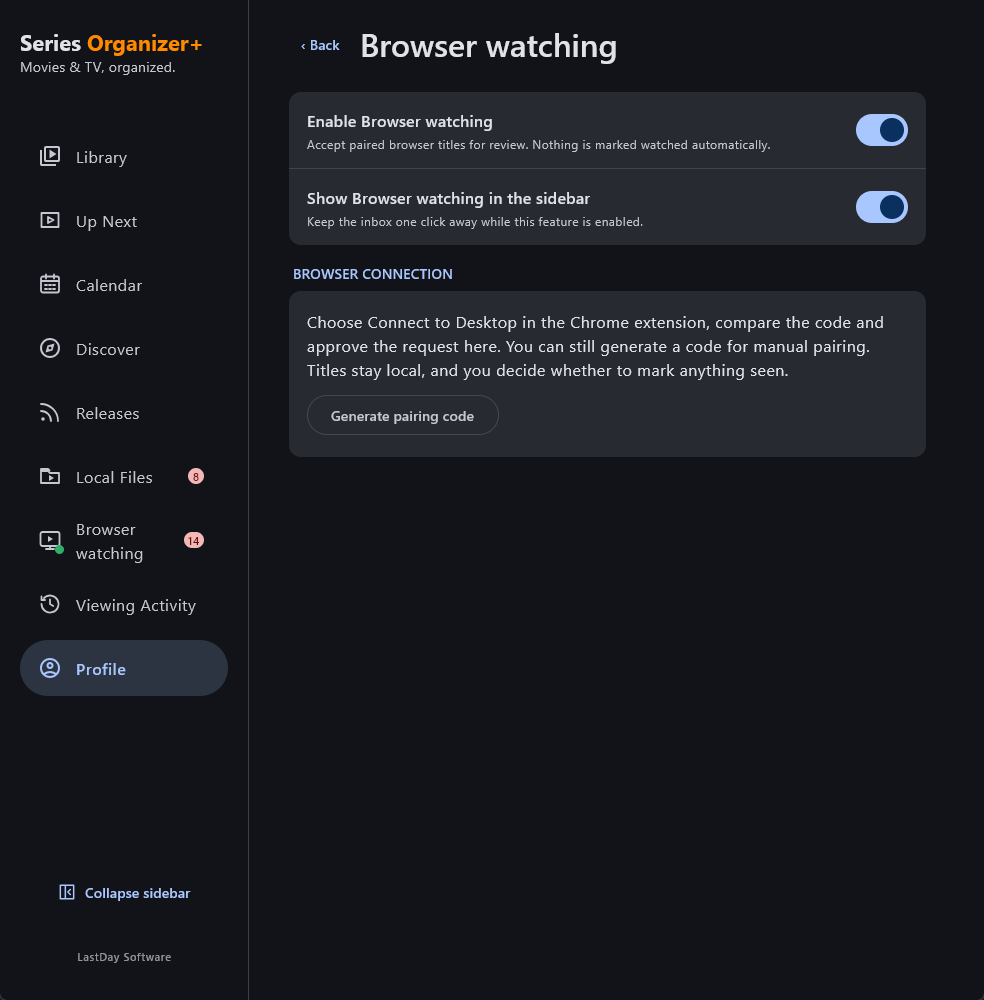
Browser Watching settings are in SO+ Desktop Profile. Generate pairing code is the manual fallback, not the normal connection step.
- Open Chrome's Extensions menu and select Series Organizer+ Browser Watching. Pin the extension if you want its badge to stay visible on the toolbar.
- In the popup, select Connect to Desktop.
- Compare the six-digit code in the extension with the SO+ Desktop prompt. Select Approve in SO+ Desktop only if the codes match and you started the request.
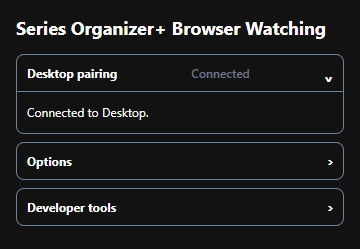
- If switching to SO+ Desktop closes the popup, reopen it after approval. Check that Desktop pairing now says Connected.
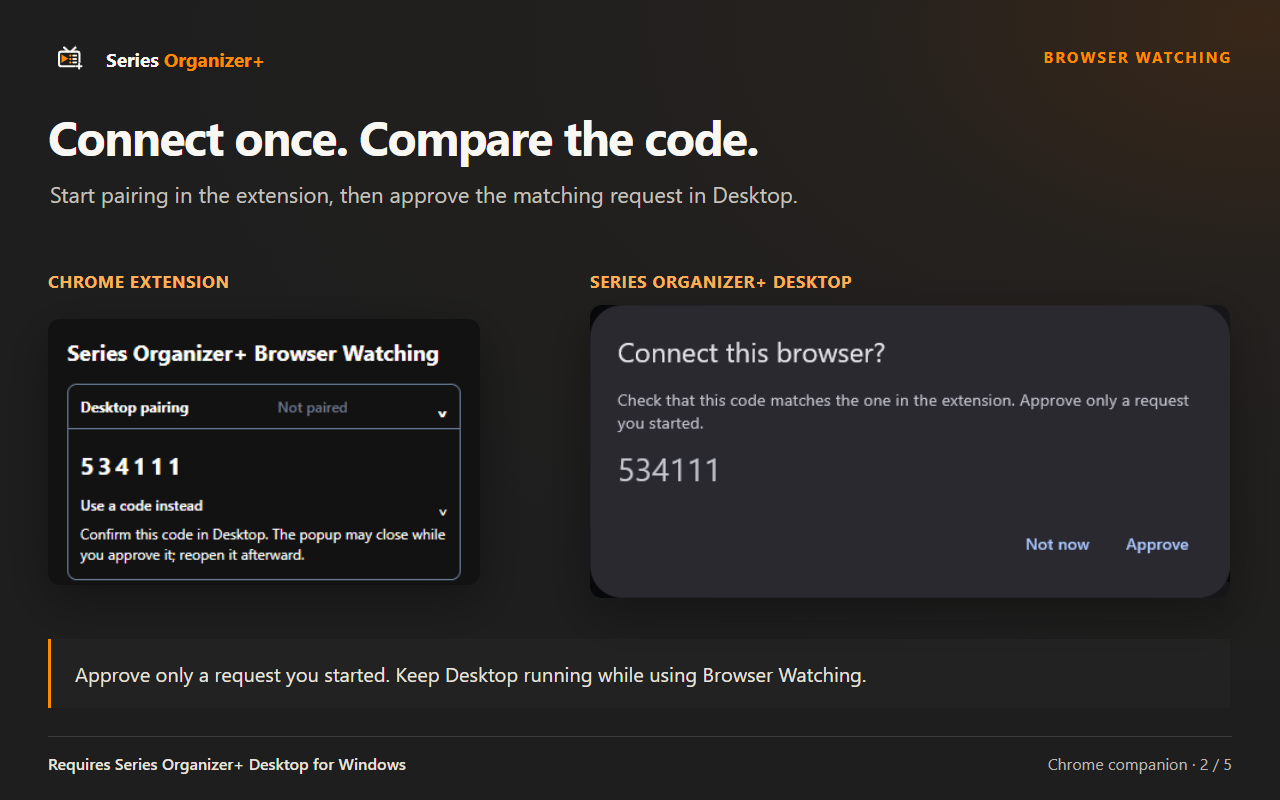
Compare the codes on your own screen. The code in this example is not a code to enter.
Detect a title and send it to Desktop
- Open a supported streaming page and start playing a movie or episode.
- If Check while the popup is closed is off, open the extension popup on that tab and leave it open while it checks. With that option on and the requested site access granted, checking can continue with the popup closed.
- Wait for the title to become ready. Detection needs advancing playback; Prime Video also uses an extra verification wait to reduce preview matches.
- Check the detected movie, show, and any episode details.
- Select Send to Desktop. If you enabled Send ready titles automatically, the extension sends a ready title for review without this click.
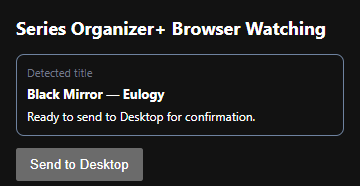
This is a title ready to send, not a recorded watch.
Review the match in SO+ Desktop
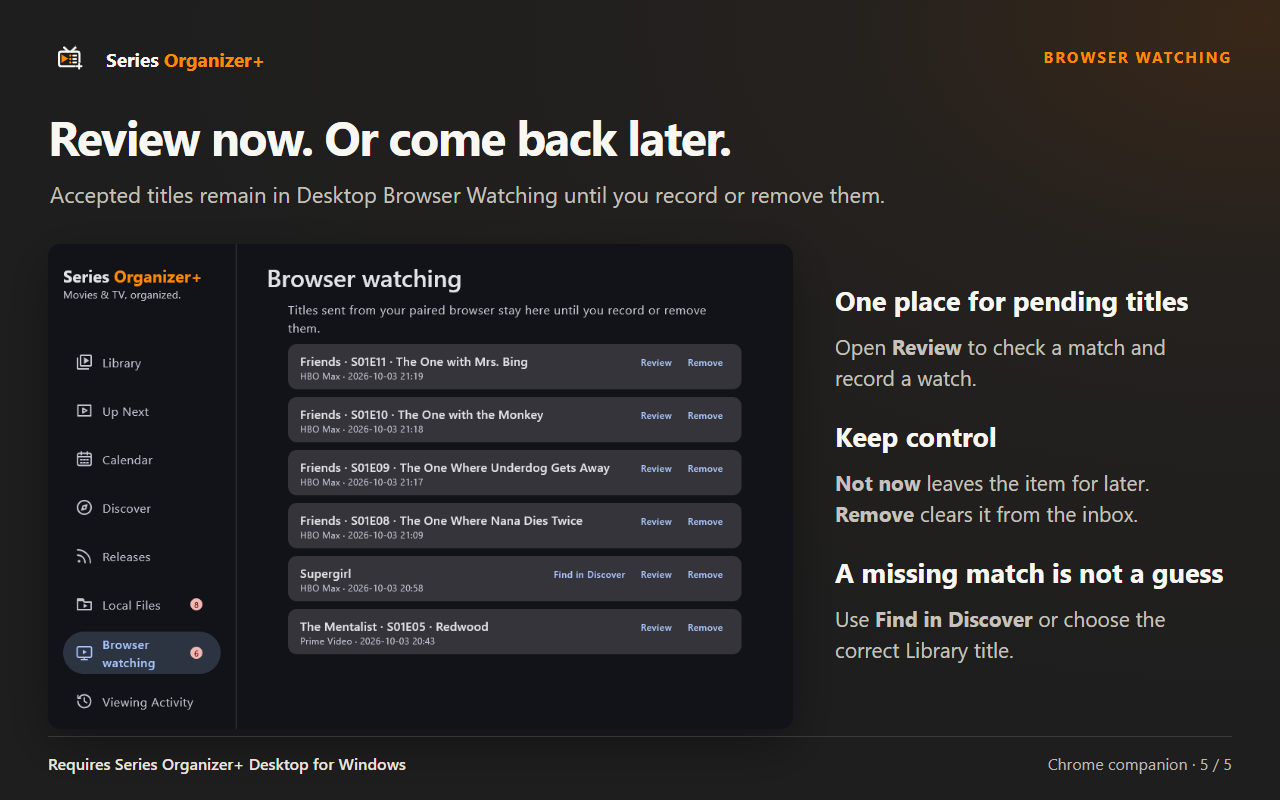
SO+ Desktop can show a confirmation prompt for a new pending title. You can also open Browser watching in the sidebar and select Review on its card.
Cards with an eligible, matched movie or episode also offer Mark as seen directly. Check the title and episode before using it. The screen's media, Up Next, Favorites, To review and Archive filters help narrow pending items; Search finds a title in the list. The menu's Mark all as seen asks for confirmation and only records eligible matched items, removing each after a successful save. Unmatched or unresolved items stay for review. Remove all is a separate confirmed action and never records watches.
- Check the matched Library title.
- For a TV show, check the proposed season and episode. Use Choose another episode if they are wrong.
- Use Open details if you want to inspect the matched movie or episode.
- Select Mark as seen only when the match is correct.
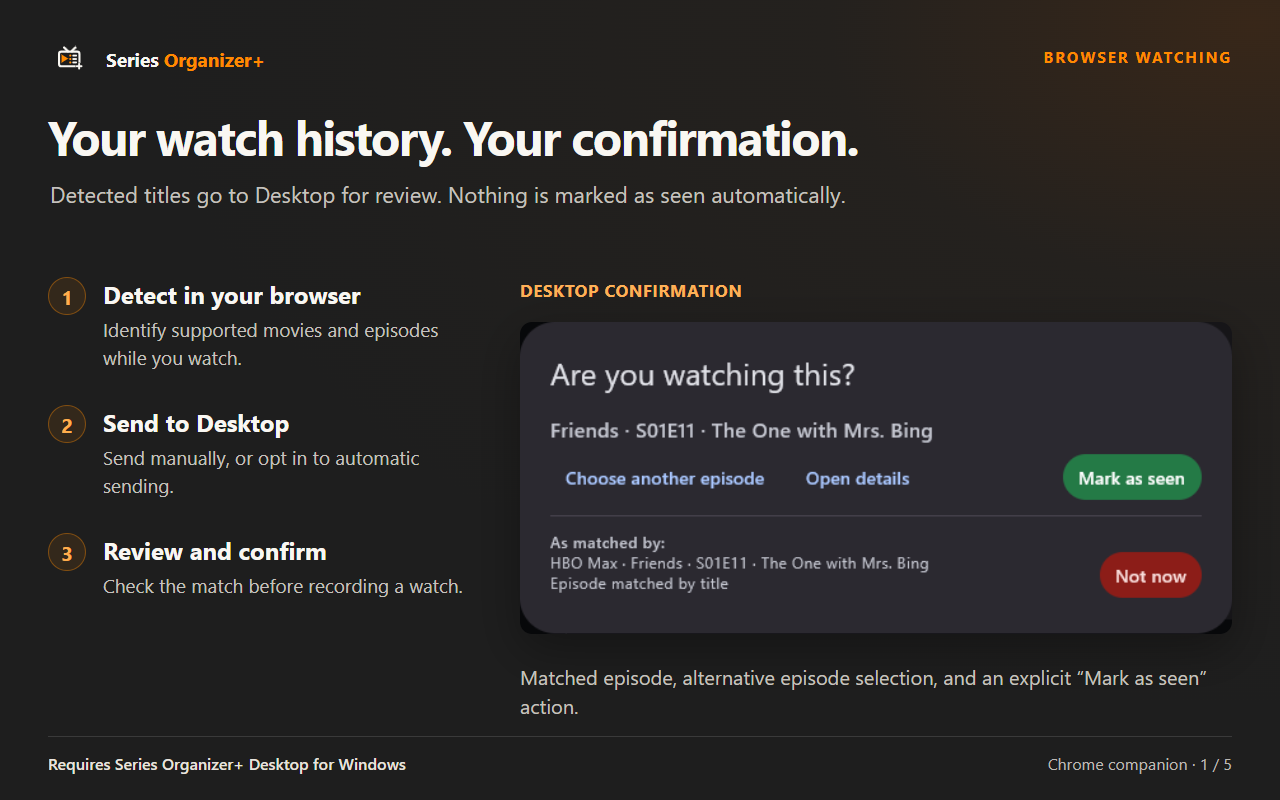
Not now leaves the item for later review. Remove clears a pending item without recording a watch.
Find a title that is not in your Library
If SO+ Desktop cannot confidently match a title, use Choose Library title to link the correct existing Library entry. If it is not in your Library, select Find in Discover to search for it.
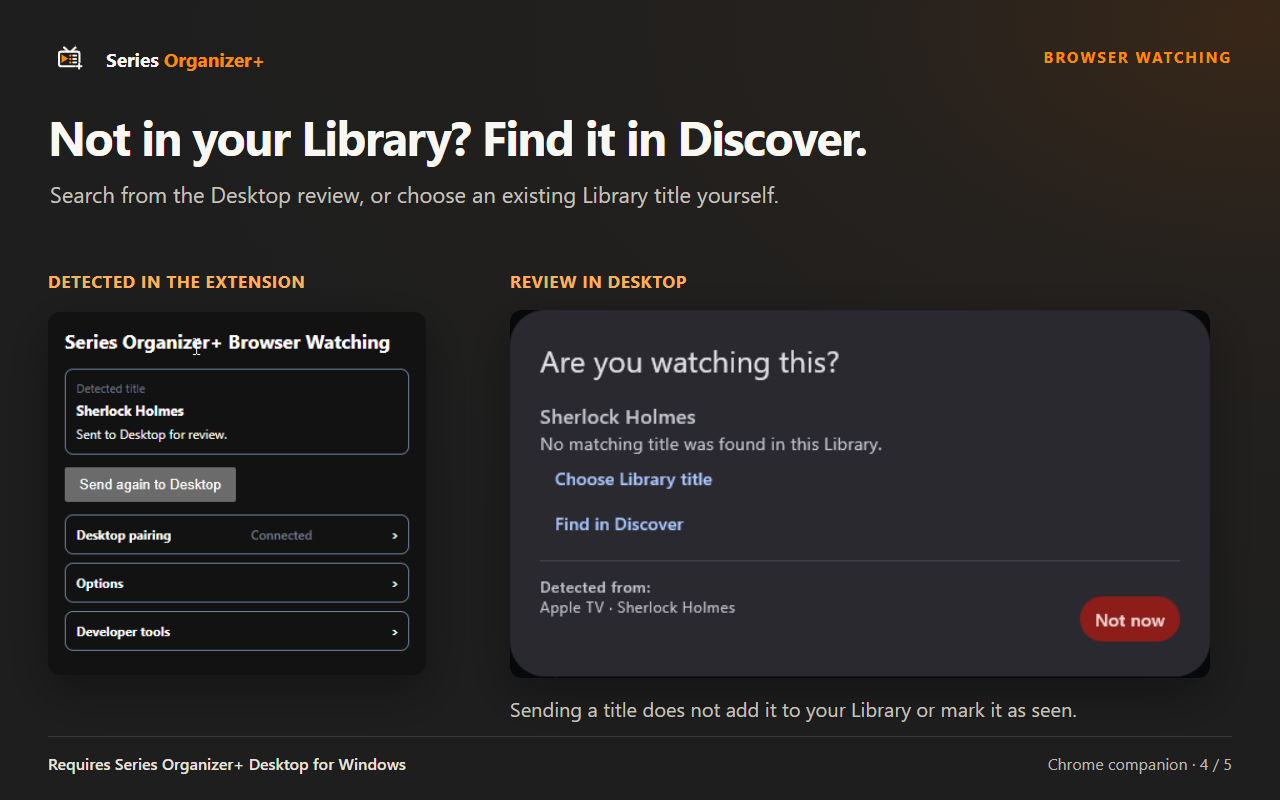
Find in Discover starts a movie search for a detected movie and a TV-show search for a detected show or numbered episode. An ambiguous title from an Apple home or channel page starts in Movies; switch to TV Shows if needed.
Searching or sending a title does not add it to your Library or mark it as seen. Add the correct title through Discover, then review the pending item again. If the player supplied only a show title, SO+ Desktop may still ask you to choose its episode.
Send a title again or record a rewatch
Once SO+ Desktop has accepted the current confirmed title, the popup offers Send again to Desktop. Use it if you removed the original review item or want to submit the title again.
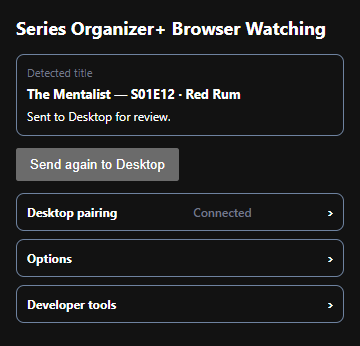
An existing pending item may be reused instead of duplicated. Check the SO+ Desktop inbox before sending again.
Sent to Desktop for review means SO+ Desktop accepted that title earlier. It does not say whether the item is still pending. Refreshing the streaming page does not clear automatic duplicate protection.
Manual sending remains available with Skip titles already marked as seen enabled. Sending again does not itself record a rewatch: review and confirm the watch in SO+ Desktop. After a player closes or changes title, wait for the current title to be confirmed before sending.
Understand the extension badge
The badge describes the current tab. Hover over the extension icon for its text description.
| Example | Badge | Meaning |
|---|---|---|
 |
No badge | No current watch status is available for this tab. |
 |
Green dot | The extension recently connected to SO+ Desktop on a supported watch page. |
 |
Blue question mark | A possible title is being checked, often while waiting for advancing playback. |
 |
Blue exclamation mark | A title is ready to send manually. |
 |
Blue check | SO+ Desktop accepted the title for review. Sending alone has not marked it as seen. |
 |
Green check | SO+ Desktop confirmed that the exact movie or episode is already seen in your Library. |
An already-seen result takes precedence over the sent badge. Neither checkmark proves that SO+ Desktop is currently connected or that its inbox still contains the item.
Choose how much happens automatically
Open Options in the extension. These three controls default to off:
| Option | What it changes |
|---|---|
| Check while the popup is closed | Requests access to supported streaming sites so detection can continue with the popup closed. |
| Send ready titles automatically | Sends ready titles to SO+ Desktop for review. It does not mark them as seen. Enable background checks too if you want this to work with the popup closed. |
| Skip titles already marked as seen | With automatic sending enabled, skips a title when SO+ Desktop confirms that the exact movie or episode is already seen. Manual sending remains available for a rewatch. |
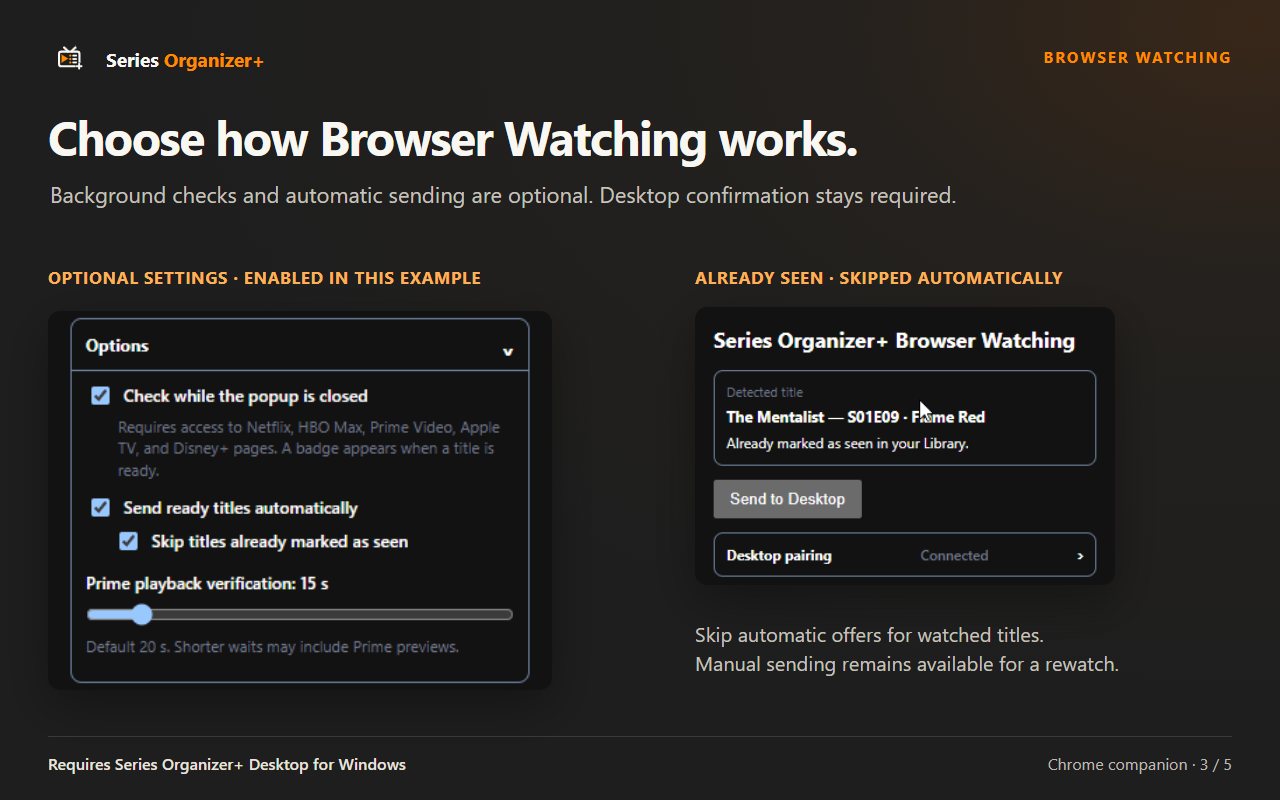
These settings are enabled for the example; they are not the defaults. The already-seen title was not automatically sent. Send to Desktop remains available.
If Chrome has granted only some provider permissions, use Add missing site access when shown to include the others. If Chrome removes all required site access, background checks turn off.
If SO+ Desktop cannot check whether a title is watched, Skip titles already marked as seen makes automatic sending wait. An uncertain match is not treated as an already-seen title.
Adjust the Prime Video verification wait
Prime playback verification ranges from 2 to 120 seconds and defaults to 20 seconds.
Advancing playback earns this wait. A pause keeps progress already earned but does not complete the timer. Shorter waits may include previews.
Match translated titles and different episode markers
SO+ Desktop Profile → Language has an optional match language and extra single-letter season and episode markers. Use them if streaming titles are translated or the player's markers differ from the built-in S/T and E letters.
The match language also helps matching Local Files; it does not change your normal content language.
Troubleshoot detection and delivery
| What you see | What to check |
|---|---|
| Desktop is offline | Open SO+ Desktop, enable Browser Watching for the active profile, and allow time for reconnection. Do not pair again just because you closed Desktop. |
| Nothing happens with the popup closed | Enable Check while the popup is closed and grant site access. For automatic delivery, also enable Send ready titles automatically. |
| A provider still does not detect | Check its Chrome site access. Use Add missing site access if shown. Play the title and open the popup on that tab to inspect it. |
| A question mark stays visible | Let playback advance and allow the player to expose its title. For Prime, allow the verification delay. A paused or stalled video cannot complete verification. |
| A title was sent but no SO+ Desktop card is present | Check the active SO+ Desktop profile and inbox. The sent message records earlier acceptance, not current inbox presence. Use Send again to Desktop for a confirmed current title. |
| SO+ Desktop proposes the wrong movie or episode | Use Choose Library title or Choose another episode. Do not confirm a wrong match. |
| An old tab does not update | Return to the tab and resume playback. More than two minutes without a reading requires fresh advancing playback. This differs from pausing while checks continue: an already confirmed Apple or Prime episode can remain identified. |
Use a pairing code instead
If button-based pairing is unavailable:
- In Desktop Profile → Browser watching, select Generate pairing code.
- In the extension, expand Desktop pairing → Use a code instead.
- Enter the eight-digit code and select Pair within five minutes.
The eight-digit manual code is different from the six-digit approval code. Generating a new code, switching Desktop profiles, or disabling Browser Watching can require pairing again.
Check the Desktop connection
Open Desktop pairing in the extension to check the connection.
| Status | What to do |
|---|---|
| Connected | Desktop responded recently. You can send a ready title for review. |
| Desktop offline · pairing saved | Open Desktop with Browser Watching enabled and allow a short time for reconnection. You do not normally need to pair again after closing Desktop. |
| Not paired | Complete the pairing steps above. |
The Desktop sidebar's green dot also means the extension contacted Desktop recently. It disappears after roughly 45 seconds without authenticated contact. Reconnection restores it without new approval.
A saved pairing, detected title, or checkmark is not proof of a live connection. Check Desktop pairing separately. If reconnection fails, check the active Desktop profile and its Browser Watching setting, then try Connect to Desktop or the manual fallback.
Share a diagnostic report
If a supported provider still fails:
- Open the extension on the affected tab and expand Developer tools.
- Select Refresh while the issue is visible.
- Copy the Local diagnostic report, or use Append report to text file… to save a local copy.
- Review and redact the report before sharing it.
- Contact support@seriesorganizer.com with the report, provider, expected movie or episode, player language, and a short description of the problem.
Reports can include page paths, titles, and playback readings. Never share passwords, tokens, cookies, or account details. Reports are not uploaded automatically.
Privacy and language
Pairing and title delivery use a local connection between Chrome and SO+ Desktop on this computer. The extension sends detected titles or episode information for matching. It does not send the streaming page URL, playback time, or diagnostic report to Desktop.
SO+ Desktop can return a yes/no watched result for an exact Library match; it does not give the extension your Library records. Background site access and automatic sending are separate, optional choices.
While paired, the popup follows SO+ Desktop's effective app language. While unpaired, it follows Chrome's interface language. Streaming titles stay in the language supplied by the service.